GUIDE · · 4 MIN
Updated
MacCrab: make sense of activity on your Mac
A walk through MacCrab: follow one event into its evidence, and read what permissions it needs and what it does not cover before you install it.
The question I usually start with in MacCrab is “What did that process actually do?” MacCrab collects macOS activity, evaluates it with detection rules and presents the resulting events and alerts on the machine. You can follow a process into the evidence behind an alert, including activity associated with supported AI coding tools.
This guide follows that question through the main views.
The screenshots are from the April 2026 walkthrough. The current release is v1.22.5 and its interface has changed since then. I re-read the steps against the v1.22.5 README on 6 October 2026; use the release documentation for setup and coverage.
Before installing
MacCrab uses an Endpoint Security system extension and requires macOS approval for that extension and the relevant Full Disk Access permissions. These are substantial permissions, and the installation instructions should be read before granting them.
The supported macOS matrix separates the minimum supported system from the actively tested target. Check it against your machine and the release you intend to install. The download page and GitHub releases provide the installation routes; the FAQ covers updates and removal.
Start with the default detection workflow and ordinary activity on your own Mac. You do not need to run an attack to learn the interface. On a quiet Mac the alert list can stay empty, which tells you nothing about whether monitoring is working or whether the machine is clean.
Check that observations are arriving
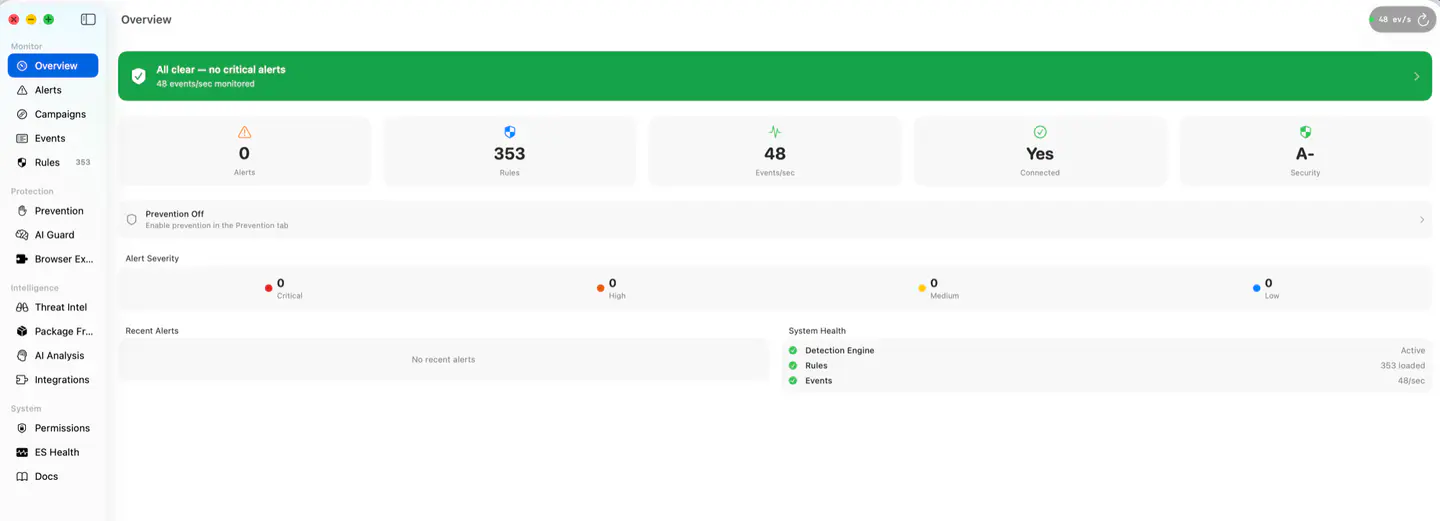
The dashboard brings together connection health, event activity and alerts. Check the monitoring status before interpreting the alert count. If the system extension is not active or a required permission is missing, resolve that first using the troubleshooting guide.
Once events are arriving, find an activity you recognise. If it produced an alert, open the detail and read the rule’s explanation alongside the process, time and available context. Ask whether the evidence supports the alert and whether the activity was expected.
Follow a coding tool’s activity
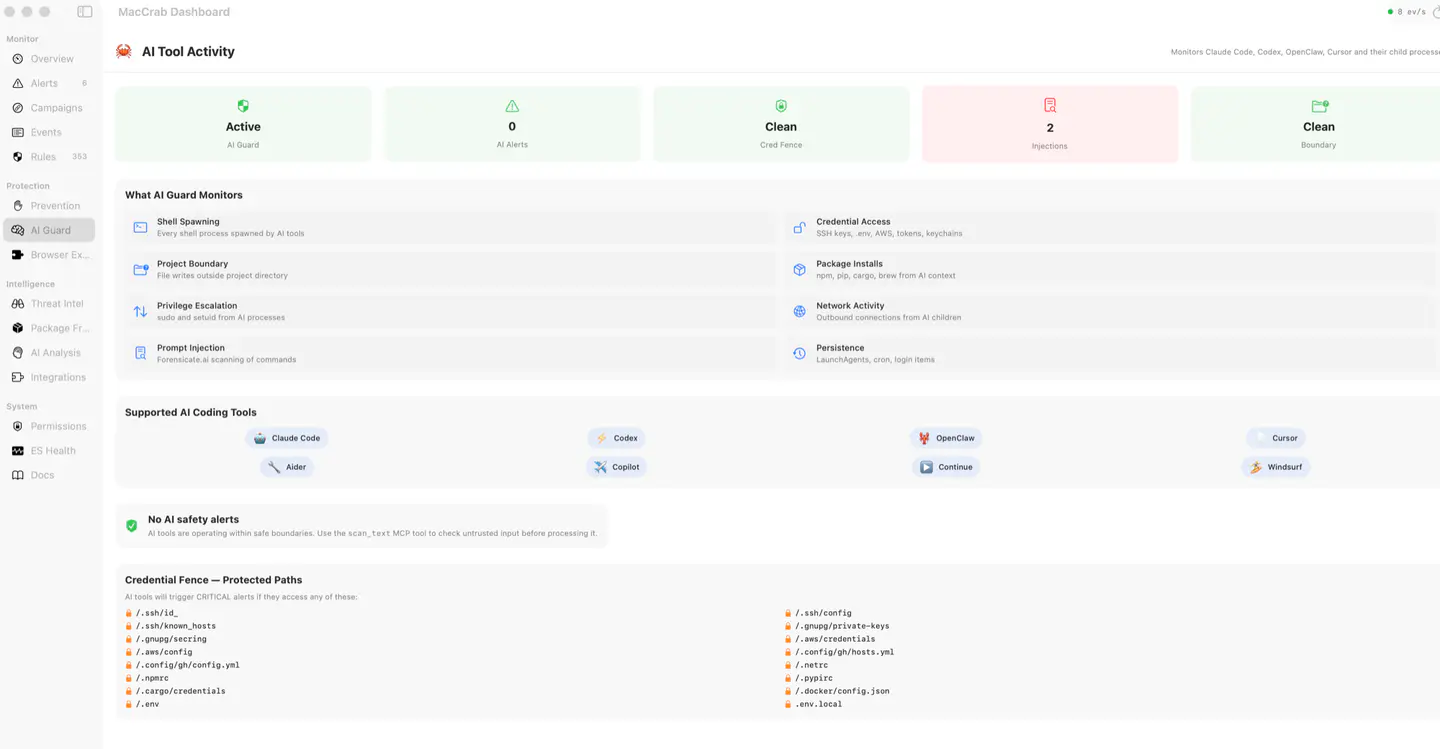
AI Guard groups observations associated with supported coding tools and their activity. Use it to investigate a concrete question from a session: which process acted, which file or destination appears in the record, and what rule or relationship brought it to your attention?
Compare what the assistant said it did with the host activity MacCrab recorded, because the two can differ and neither is complete on its own. Collection settings, permissions, event coverage and attribution affect what MacCrab can show; a missing alert is not evidence that an action did not happen.
Agent Traces binds the child processes a coding tool spawns to the LLM turn that started them, when the tool sets TRACEPARENT in their environment. The span receiver is off until you enable it under Agent Traces in Settings, and prompt text is redacted from the spans before they are stored.
Understand the path from event to alert
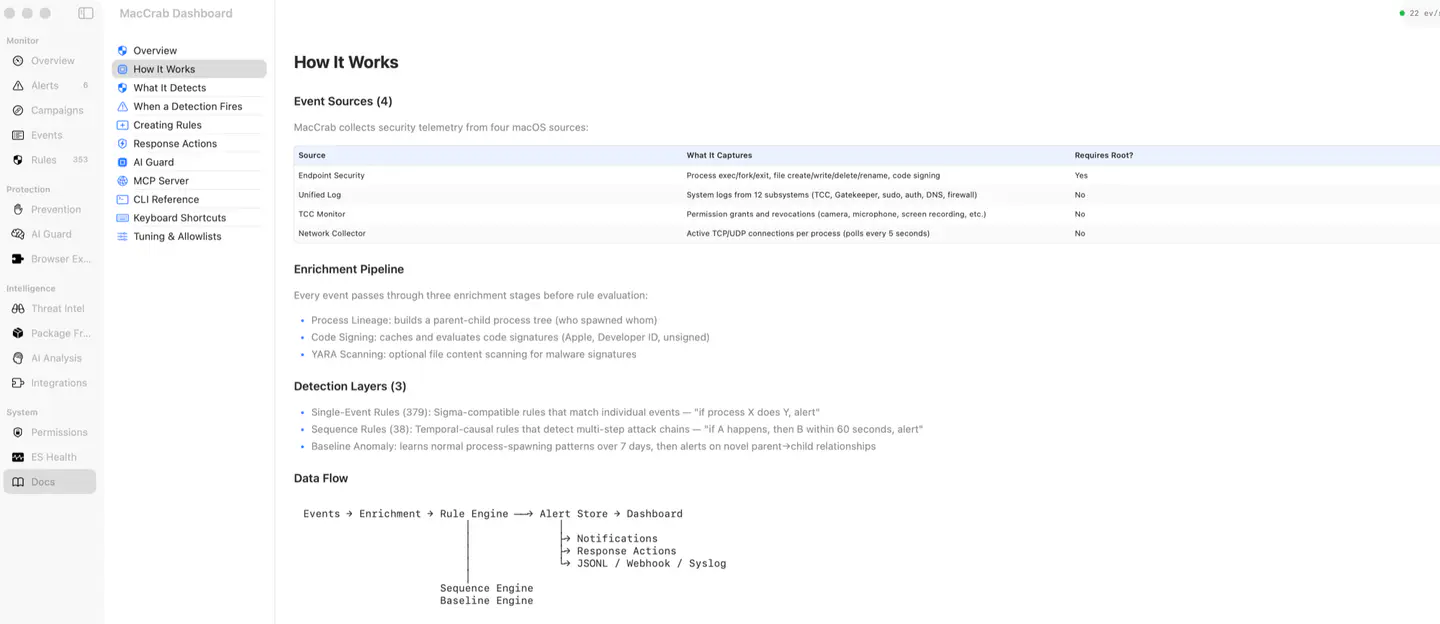
The system extension receives Endpoint Security events. Rule evaluation and correlation turn selected observations into alerts, and the local database keeps the records available for inspection. The benchmark document distinguishes documented coverage from completed efficacy measurement. The rule count is an inventory, and detection efficacy against real incidents has not been measured yet.
Core detection runs locally. Optional cloud AI analysis sends selected alert context to the configured provider after sanitisation. That screening has limits; it is not proof that every sensitive string has been removed. Keep cloud analysis disabled if investigation content must remain on the Mac, and review the privacy documentation before configuring remote features. Software-update requests are separate from uploading investigation content.
Add context when you need it
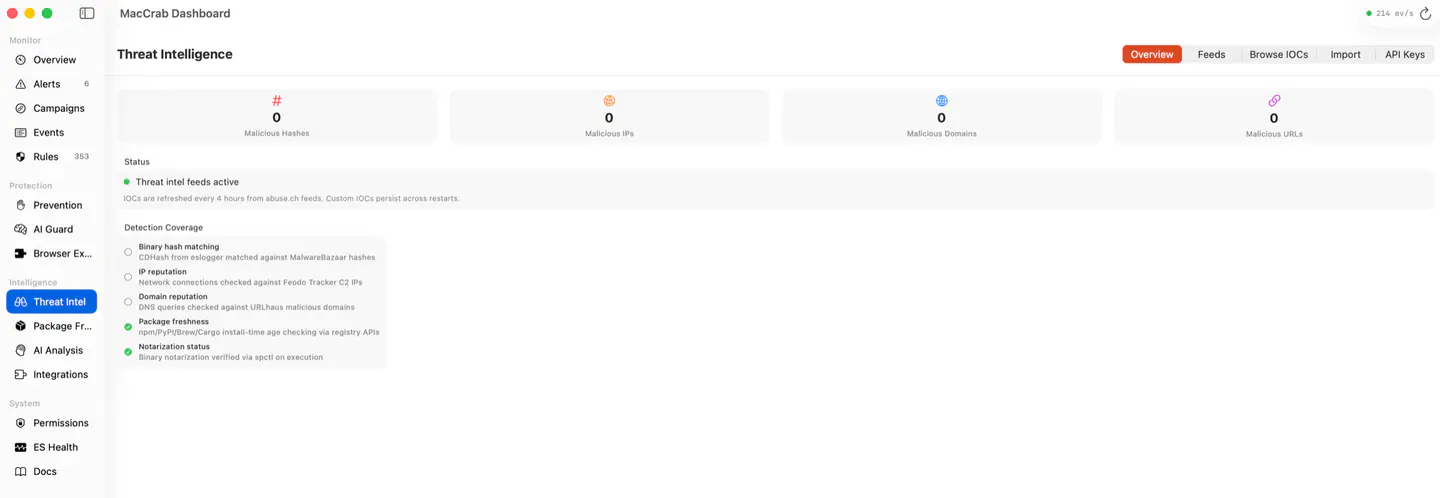
Threat-intelligence feeds are optional. A matching indicator supplies another piece of context, including its source; it still needs to be assessed against the observed activity. Fetching a feed also makes a network request, even when no investigation content is uploaded.
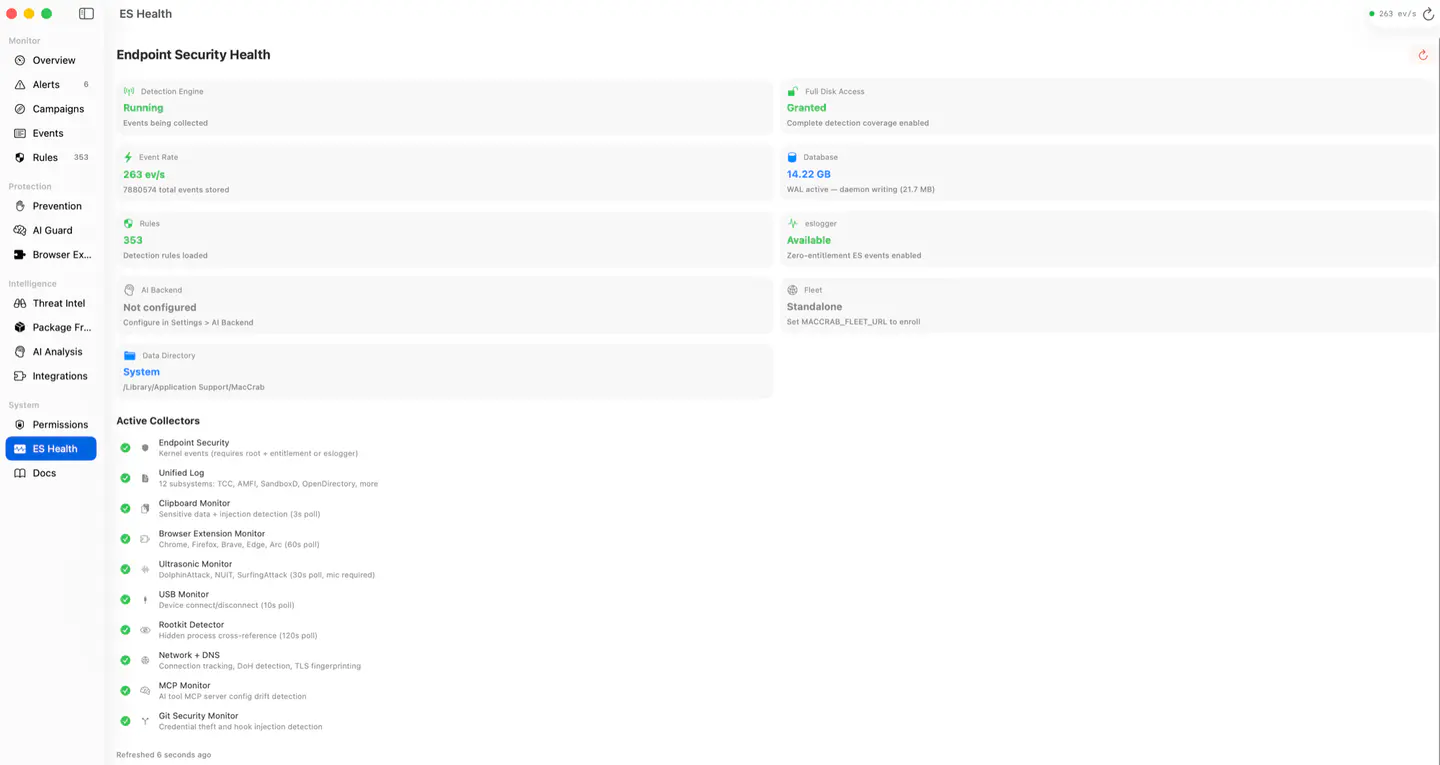
If observations stop making sense, return to Endpoint Security health. Delivery and dropped-event diagnostics help distinguish a collection problem from a quiet rule set. Preserve the relevant context when reporting an issue, and review diagnostics for sensitive information before sharing them.
When you are done
If an alert is noisy or unclear, write down why at the time, because the dashboard total does not record that.
If you remove MacCrab, follow the uninstallation instructions. Normal uninstallation retains data; the FAQ explains the separate cleanup step if you want to remove the history as well.
Download MacCrab · Read the build story · Inspect the source